Make Smarter, Safer Payments with Google Pay™
Google PayTM is a digital wallet that lets you securely store your First Citizens credit or prepaid card, making payments safer and more convenient both in stores (anywhere Google PayTM is accepted) and online at any time.
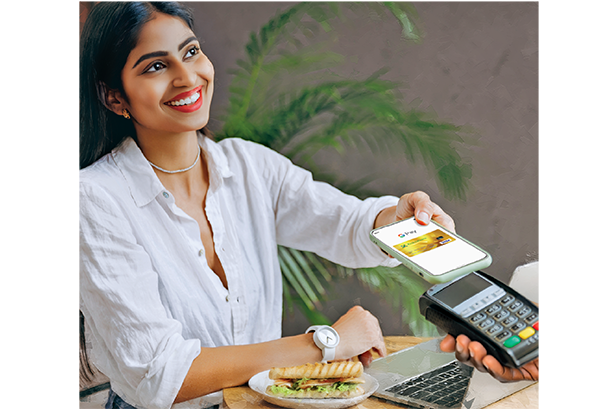
With Google Pay™, you’ll enjoy:

Faster Payments
Simply tap your phone at checkout for quick, contactless transactions.

Convenience
No need to enter your card number; just select Google PayTM when making online payments.

Safety and Security
Your card information is protected by tokenization, ensuring your real credit or prepaid card numbers are never shared.

No Additional Costs
There are no extra fees to sign up for or use Google PayTM for payments.
Google PayTM is applicable to Credit and Prepaid cards only
To Get Started:
- Open the Google WalletTM app (or download it from the Google Play Store).
- Sign in to your Google account.
- Tap “Add to Wallet“ and follow the instructions.
- Use your phone’s camera to scan your First Citizens credit or prepaid card, or enter the card details manually.
- Verify your card with your bank. This may involve receiving and entering a one-time password (OTP).
- Once verified, your card is ready to use with Google PayTM.
Frequently Asked Questions
What is Google PayTM?
Google PayTM is a digital wallet that lets you pay with your First Citizens card using your Android device — tap in stores or pay in apps and on websites—without using your physical card. It securely stores your First Citizens Credit and Prepaid Card(s) for convenient in-store and online payments.
Which First Citizens cards can I use with Google PayTM?
First Citizens Visa and Mastercard Credit and Prepaid cards are supported. Your card must be active and in good standing.
What devices are compatible with Google PayTM?
Devices running Android 5.0 (Lollipop) or higher with Near Field Communication (NFC) and Google Play Services.
Will First Citizens introduce Apple Pay?
Yes. Preparations are underway to introduce Apple Pay, with a potential rollout later in 2026. Further updates will be shared closer to the release date.
How do I add my First Citizens credit card to Google PayTM?
- Open the Google Play Store and download the “Google Wallet” app
- Select “Add Payment Card” and enter your Credit or Prepaid Card details
- Use your phone’s camera to scan your First Citizens Credit or Prepaid Card, or enter your card details manually
- Review and accept the Legal Agreement
- Choose your preferred communication channel (email or SMS) to receive a One-Time Password (OTP)
- Enter the OTP you received
- Once your OTP is successfully entered, your card is ready to use with Google Pay
Where can I use Google PayTM?
You can use Google PayTM at:
- In apps and on websites where Google PayTM is listed as a payment option
- Any store that accepts contactless payments (look for the Google PayTM logo)
How can I use Google PayTM to make online purchases?
Look for the Google PayTM Logo or “Buy with Google PayTM” button on the website or in app. Select Google PayTM as your payment method at checkout.
Is Google PayTM safe to use?
Yes. Google PayTM uses industry-standard tokenization, so your actual card number is not shared with merchants. A virtual account number is used for each transaction. Your card details are never stored on your phone or shared.
Do I need to open the Google WalletTM app to make a payment in-store?
Simply hold your mobile phone near the contactless terminal until you see a check mark or hear a beep. If it doesn’t work, check that NFC is on, look for the Google PayTMor contactless symbol, unlock your phone, and follow any prompts on your phone or the terminal.
Will I still earn rewards and benefits from my First Citizens credit or prepaid card when using Google PayTM?
Yes, you’ll continue to earn the rewards and benefits associated with your card.
What should I do if my mobile phone is lost or stolen?
Call 62-FIRST to report your phone and suspend your cards in Google PayTM. You can still use your physical card for purchases.
How do I remove my First Citizens Credit or Prepaid card from Google PayTM?
- Open the Google WalletTM app
- Tap the card to remove
- Tap the three-dot menu, then select “Remove payment method”
Is there a cost to use Google PayTM?
No, Google PayTM is a free service offered by Google and supported by First Citizens.
How can I get help or support with Google PayTM?
- Email: channelsupport@firstcitizenstt.com
- Call First Citizens Contact Centre at 62-FIRST
- Visit support.google.com/googlepay for Google-related questions
Are there transaction limits?
Google PayTM follows your card’s available limit. Some terminals may prompt you to enter your PIN above the merchant’s contactless limit.
Can I use Google PayTM at ATMs?
No, use your physical card for ATM transactions.
What happens with refunds/returns made using Google PayTM?
Refunds go back to the same First Citizens card. You don’t need your phone to receive a refund.
If I changed or replaced my phone, what should I do?
Remove your card from your old device (Google WalletTM → Remove). On your new device, add and verify your card again in Google WalletTM.
Can I add the same card to more than one device?
Yes, each device gets its own secure token. If you remove the card from one device, it remains active on your other devices until removed there too.
How do I set or change my default payment card in Google PayTM?
Open Google WalletTM → drag your preferred card to the top or select Set as default.
Will my Credit or Prepaid Card statement look different?
Transactions will appear on your First Citizens statement as usual. In Google WalletTM, you may also see the merchant name, time, and amount for recent transactions.
Can my card be used internationally?
You can use Google PayTM anywhere the merchant accepts contactless payments and your First Citizens card is permitted. Standard foreign exchange fees and limits apply per your card’s terms.
Is Google Pay accepted by all retailers?
You can make payments anywhere Google Pay or contactless payments are accepted—locally, abroad and online.